
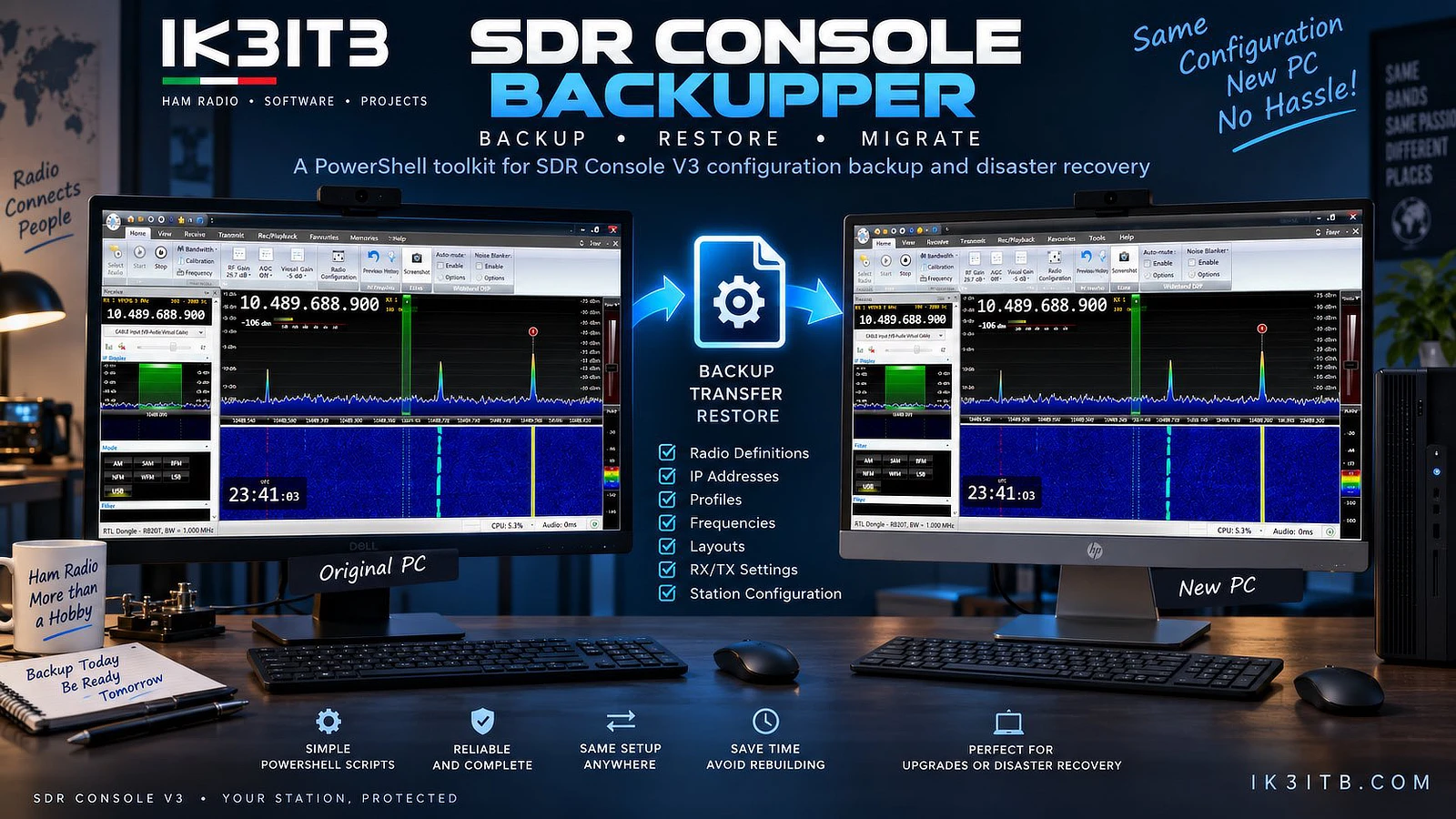
SDRConsole Backupper is a set of PowerShell and CMD scripts designed for backup, recovery, and migration of configuration SDR Console V3. The project was created by Paolo Giardini, IK3ITB, based on the practical problem of transferring a configuration used for a long time to a new computer. The goal is not just to make a copy of a few user files, but to capture essential parts of the configuration SDR Console so that they can be restored on the original computer or transferred to another Windows computer.
The project is designed for Windows 10 and Windows 11 and works with SDR Console V3. It is a transparent toolkit without a proprietary executable: the package includes standard PowerShell files with the .ps1 extension and CMD launchers that can be opened in a text editor and checked before use. The current version of the project is 1.1 according to the author's page; the manual available separately is marked as version 1.0 and the author states that his procedure remains valid for version 1.1.
In the article you will read
What SDRConsole Backupper backs up

The basis of the backup is the entire directory %APPDATA%\SDR-RADIO.com (V3), in which SDR Console stores a significant part of the user configuration. The directory %LOCALAPPDATA%\SDR-RADIO.com (V3) is also backed up if it exists on the given computer. Another part is the export of the registry branch HKCU\Software\SDR-RADIO.com (V3), i.e., the configuration of SDR Console belonging to the current Windows user.
Optionally, the installation directory of SDR Console can also be included in the backup. However, when migrating to a computer where SDR Console is already installed, the author recommends not restoring this directory and using the launcher Restore_SDRConsole_CONFIG_ONLY.cmd. The program files will remain untouched, and only the configuration will be transferred.
What is not transferred
An important limitation concerns Windows audio devices. SDRConsole Backupper does save information about audio configuration as a diagnostic reference, but it does not automatically import them upon restoration. The reason is the different drivers, names, and identifiers of audio devices on different computers. In a blind transfer, SDR Console could receive references to devices that do not exist on the target computer.
The same must be considered for Virtual Audio Cable and other virtual audio devices. If their configuration is used by SDR Console, they must be installed separately on the new computer. After the first restoration, it is necessary to check audio routing and device assignments. SDRConsole Backupper therefore clones the configuration of SDR Console, not specific Windows audio hardware.
On the other hand, the backup may contain, for example, Radio Definitions, IP addresses and serial numbers of SDR devices, frequencies, transverter configurations, RX/TX profiles, display settings, spectrum and waterfall layout, span, bandwidth, and other settings stored in supported configuration areas of SDR Console.
Creating a backup step by step
Before creating a backup, SDR Console must be closed. The toolkit is first unpacked into a regular directory. Then, Backup_SDRConsole_ONECLICK.cmd is executed. The script checks if SDR Console is not running and then copies the relevant configuration files and registry data.

During the creation of the ZIP archive, a progress indication is displayed. After the compression is completed, the archive is verified, and only then is the backup marked as successfully created. The backup also includes a JSON manifest containing information about the computer, user, paths, and version.
The default backup location depends on the availability of drive D:. If a writable drive D: exists, the directory D:\Backup\SDRConsole is used. Otherwise, the backup is saved to Documents\SDRConsole-Backups. The archive name contains the name of the source computer and the date with time.
The resulting ZIP archive should also be saved outside the system disk. The author recommends regular backups, especially after significant configuration changes, and keeping at least one copy on another storage.
Transfer of SDR Console to another computer
During migration, a procedure based on configuration is recommended, not on copying the entire program. The same version of SDR Console that was used on the original computer should first be installed on the new computer. The same version is not just a practical recommendation – the manual explicitly recommends it during migration. At the same time, all used VAC or other virtual audio devices must be installed.

Then the toolkit along with the backup ZIP archive is copied to the new computer. SDR Console must remain closed. For this scenario, the launcher Restore_SDRConsole_CONFIG_ONLY.cmd is intended. It will leave the existing SDR Console program files untouched and restore the configuration areas.
Before the actual recovery, the program will display a RESTORE SUMMARY. The user can check the backup source, target paths for Roaming and LocalAppData, registry status, any program installation, and the method of processing audio configuration. In CONFIG_ONLY mode, it must also be clear that the installation directory will not be restored. Recovery continues only after explicit confirmation by typing the word RESTORE.
Before replacing the existing configuration, SDRConsole Backupper creates an automatic PRE-RESTORE backup. If its creation fails, the recovery itself will stop for safety reasons. The PRE-RESTORE archive represents a point of return to the configuration that existed immediately before the previous recovery.
After successfully completing the recovery, it is recommended to restart Windows and only then launch SDR Console. Subsequently, it is necessary to check Radio Definitions, IP addresses or serial numbers of SDR devices, frequencies and transverter configurations, RX/TX profiles, spectrum and waterfall layout, gain, Visual, span, bandwidth, and especially VAC and audio routing.
Why migration is usable even with another Windows user
SDRConsole Backupper does not blindly restore the configuration to the original absolute user paths. During recovery, it creates target locations based on the variables %APPDATA%, %LOCALAPPDATA%, and the HKCU registry of the currently logged-in user. Therefore, the Windows username and computer name may differ between the source and target systems.
Practical use at the SDR station
The project was created in an environment of a station using multiple ADALM-Pluto devices and configurations for QO-100When used this way, the SDR Console configuration may consist of multiple Radio Definitions, different IP addresses, profiles, transverter frequencies, bandwidth, layouts, and audio/TX settings. The manual provides a real migration test, in which the configuration from one computer was restored on another computer with a different Windows profile using CONFIG_ONLY and the result was functionally essentially a replica of the source configuration. However, the project is not limited to ADALM-Pluto or QO-100; the principle applies to the SDR Console V3 configuration saved inbackup areas.
Complete summary

SDRConsole Backupper addresses a specific problem: preserving the complex configuration of SDR Console V3 during system crashes, Windows reinstallation, or migration to a new computer. The backup includes Roaming and, depending on availability, also LocalAppData configuration, the relevant registry branch, and optionally the installation directory. Windows audio devices are deliberately not copied because their identifiers and drivers may differ on another computer.
For a regular migration, the best combination is the same version of SDR Console on the new computer, a standalone installation of the used VAC devices, and the launcher Restore_SDRConsole_CONFIG_ONLY.cmd. Recovery security is supported by RESTORE SUMMARY, explicit confirmation, automatic PRE-RESTORE backup, and a request to restart Windows before relaunching SDR Console. Since these are scripts in readable PowerShell and CMD, the user can also verify before starting what will be copied, changed, or restored.