
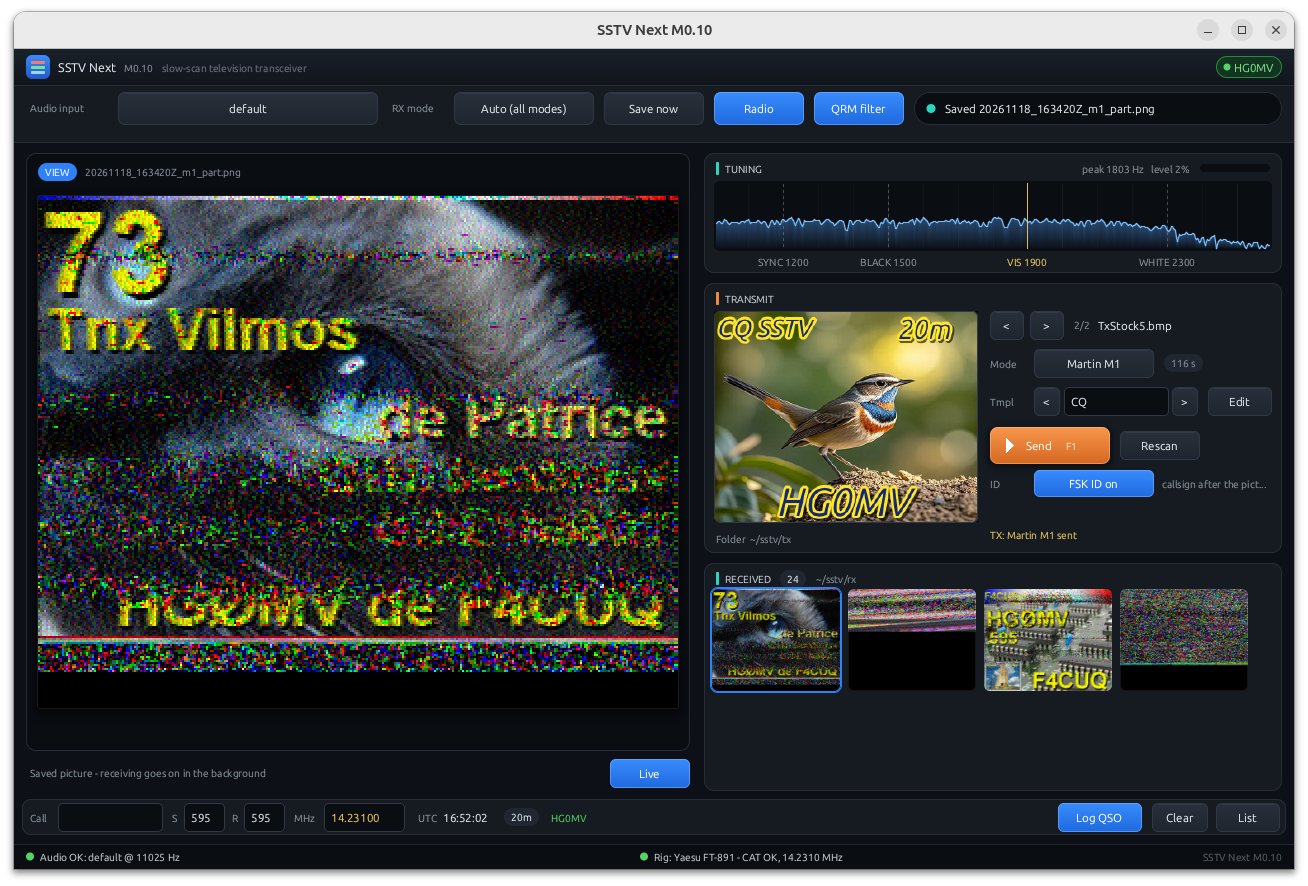
Anyone who has ever caught SSTV images from the ISS knows the feeling. The flight is short, the signal weakens, and the screen remains dotted with colored dots. On the next flyover, it is damaged elsewhere. What if the program itself merged all the copies into one cleaner one? SSTV Next does exactly that.
Ide o samostatný SSTV software pre Linux a Windows, which handles both analog and digital SSTV. The author is a Hungarian radio amateur HG0MV, ktorého možno poznáte ako autora programu IonoProp. The BPSK31 program also comes from him DigiPan Next, from which SSTV Next took over radio control, sound card operation and ADIF denník. Program je napísaný v jazyku C11 a šíri sa pod licenciou GPL-3.0.
You will read in the article
25 analog modes and reception even at 0 dB
The program recognizes 25 common analog modes: Robot, Scottie, Martin, PD, Wraase, Pasokon and black and white FAX480. The mode detects it from the VIS header, and if it didn't catch it, for example because you started the program in the middle of the image, it determines it from the timing of the sync pulses after about ten lines.
In addition to the FM discriminator, it searches for the header and synchronization with narrow-band adapted filters. This causes the reception to start up and hold at about 0dB SNR over a 2.5kHz width. If you can hear the signal, the reception will start. When the header is partially covered by the speech QRM, the program still finds the beginning of the image.
The skewed image is continuously corrected and the QRM filter replaces the colored dots after speech interference with data from adjacent lines. If the signal disappears for 8 seconds, the program saves the processed image with the _part.
Digital SSTV without switching
The other half of the program is HamDRM. The author wrote it himself according to the DRM standard and the signal is bit-matched with QSSTV, compatible with EasyPal as well. A, B, and E robustness modes, 4, 16, and 64-QAM modulations, Reed-Solomon code-protected files (.rs1 to .rs4), and requests to repeat missing parts via BSR are available. Images can be in both JPEG and JPEG 2000.
Both the analog and digital decoders run simultaneously. You don't have to switch anything, the program recognizes what is coming.
Repeated images and ISS
During ARISS events and in SSTV circles, the same image is broadcast repeatedly. SSTV Next remembers the last 8 analog receptions from the last 3 hours. When the same image arrives in the same mode, it aligns the copies, even if one started without VIS or is incomplete, and joins them line by line.

Each row is weighted by the noise in that copy, so a leak in one copy is filled by the others. The result is saved as a _combined.png file and improves with each additional intake. The program does not mix different images from one ISS series or templates with a different brand, it checks them in blocks.
If you want to try ISS, watch list of SSTV actions on the ARISS website. Akcie v roku 2026 išli v režime Robot 36 na 437,550 MHz, older also in PD120 mode at 145.800 MHz. You can find more about the ARISS program at ariss.org.
A report that will tell more than 595
For each received analog image, the program measures the SNR, frequency shift and clock error of the opposing station's sound card in ppm and saves them directly to PNG. A skewed image usually means that the sound card of the broadcaster is running out of control. Now you can also tell him with a number.
Templates in an editor like MMSSTV have %S, %O, %K and %Q macros for this. The last one puts everything at once, for example SNR 5dB QRG +39Hz CLK +117ppm. The program also learns the error of its own sound card from the received images, takes the median of the last 16 good receptions, and the Clock fix function can use it to correct your broadcast.
After the picture, the program can send your brand as FSK ID in MMSSTV and QSSTV style. The counter station adds the received FSK ID to the tag field in the log.
Radio, scanner and diary
Radio controlled via Hamlib rigctld: frequency, DATA mode and PTT. If you don't use CAT, VOX is enough. The program runs its own rigctld on a different port so it can run concurrently with DigiPan Next.
The SSTV scanner sweeps through the SSTV frequencies from 3.730 MHz to 28.680 MHz, listening for 12 seconds on each and stopping when it finds an image. When the frequency quiets down after it, it will offer an answer with the F1 key. It never broadcasts itself. The scanner assumes the radio is in DATA mode, so if you're feeding audio into the mic jack, don't use it.
Connections are recorded in their own ADIF log. For advanced users, the package also includes command-line tools sstv_dec, sstv_enc, sstv_combine, drm_dec and drm_enc, for example for processing recordings of ISS flybys from WebSDR.
Where to get it
On Linux, you compile the program with the make command, you only need the X11 and ALSA libraries. There is a zip ready for Windows 10 and 11 that you just need to unzip, Hamlib and OpenJPEG are in it. Version 0.13 is development, the author has tested it on recordings and simulated channels and will welcome reports from the band. Advanced MMSSTV modes such as MP and MR are still missing.
For source code and releases, see repositories on GitHub, detailed instructions in project wiki.
Frequently asked questions
What systems does SSTV Next run on?
On Linux with X11 and on 64-bit Windows 10 and 11. There is no version for macOS or Android.
Is it compatible with EasyPal and QSSTV?
In digital SSTV, yes. HamDRM's own implementation transmits a bit-matched signal with QSSTV and is also compatible with EasyPal.
How will it help with income from ISS?
The program recognizes repeated broadcasts of the same image and combines up to 8 copies from the last 3 hours into one cleaner image. Noisy lines in one copy will complement better lines from others.
Do I have to have the radio connected via CAT?
Nope. The program also works with VOX. However, you need CAT via Hamlib rigctld for scanner and frequency tuning.
Can the scanner transmit on its own?
Nope. The scanner just listens and when the image is finished it will offer a response with the F1 key, you always start the broadcast.