
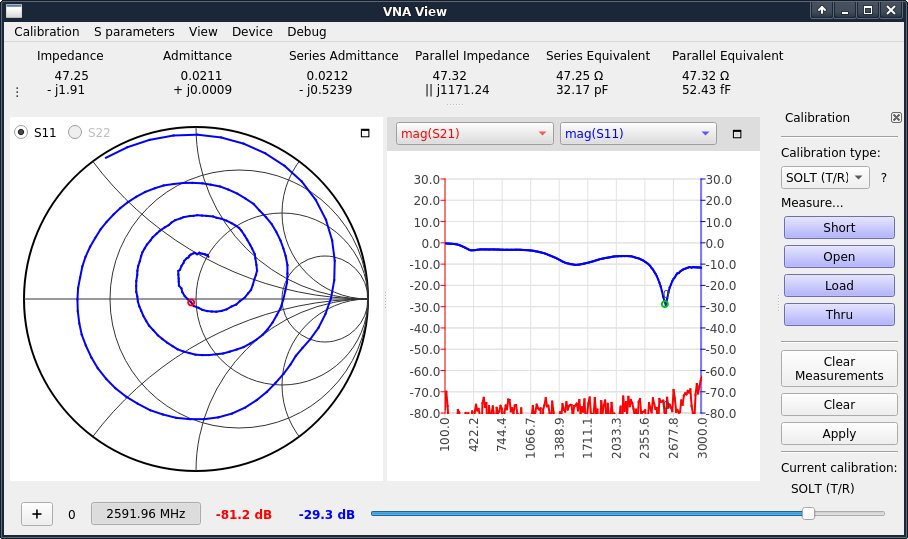
The nanoVNA can also be controlled with a finger on the small display, but whoever has once measured a filter or antenna on a large screen will never want to go back. There is an official solution for this for NanoVNA V2 series analyzers: the NanoVNA-QT program, written in C++ on top of the Qt library and distributed under the GPL-2 license.
Unlike programs that communicate with the device via a serial console, NanoVNA-QT speaks directly to the device's hardware protocol. The result is a continuous measurement in real time.
You will read in the article
Connection and sweeping settings
You connect the device via USB and select the serial port in the Device menu. Sweeping starts immediately. On Windows, the Cypress USB Serial driver included with the binary packages is required; Linux and macOS do not need any special driver.
In the Sweep parameters dialog, you set the initial and final frequency and the number of points. The program can handle 1 to 1024 points, on a more powerful computer up to 65535. The nValues item determines how many measurements are averaged at each point: a higher value means less noise but slower sweep. The output power and nWait options do not apply to V2 devices and are ignored.
Important detail: any change in the frequency range will cancel the active calibration. So think about the range before reaching for calibration standards.
SOL and SOLT calibration
Port 1 is used for S11 measurement, port 2 is connected only during SOLT calibration and S21 measurement. You choose the calibration type accordingly: SOL corrects only S11, SOLT (T/R) corrects both S11 and S21. Other items in the drop-down list do not apply to this type of device.

The procedure is straightforward. You connect the OPEN, SHORT and LOAD standards to port 1 one after the other and click on the appropriate button after each one. With SOLT, you still connect the ends of both cables with a THRU standard. You wait until the button is highlighted and click Apply. Each button starts its own sweep with double averaging, so there is no need to wait for the graphs to be drawn.
You can save and load the calibration from the Calibration menu. The file contains the measured values of the etalons, not the finished corrections, so when loaded, it is recalculated with the current parameters of the calibration set. These are global, which should be kept in mind when changing the set.
Graphs, markers and export
The main window combines a Smith chart for S11, a line graph with two selectable waveforms, and an impedance table with conversion to both series and parallel replacement circuits. You can choose the courses in the drop-down lists above the chart.

You add markers with the + button, move them with the slider under the graph and click on the frequency data to show or hide the point in the graph. For each run, the value at the marker frequency is printed. Measured S-parameters are exported via the separate S parameters menu.
Two practical examples
The R3 Radio Research channel made two videos that show the entire process from calibration to result. The first measures the band retention for FM radio from RTL-SDR.com, first in the narrow vicinity of the 88 to 108 MHz band and then in the entire range of the device.
The second video is more interesting because it measures the active device: Preamplifier with SAWbird+ NOAA filter at 137 MHz. During such a measurement, you have to pay attention to the level so as not to overload the input of the device, so the author works with attenuation elements and a shift of the calibration plane.
Building on Linux
You can find ready-made packages on the project page, but you can also build them from the source code. First, the libxavna library, for which you need the automake, libtool, make, g++, libeigen3-dev and libfftw3-dev packages. Then the vna_qt interface itself, where libqt5charts5-dev, qmake and make will be added. The repository also contains materials for packaging into AppImage.
On macOS, it's a matter of one command via MacPorts, or via Homebrew and the deploy_macos.sh script. You can cross the Windows version directly from Linux via the MXE environment. The authors state that they tested the procedure on a clean install of Ubuntu 18.04 LTS.
If the port refuses to cooperate, make sure your user is in the dialout group, otherwise you won't be able to reach the device on /dev/ttyACM0.
What you need to know
The program can also update the firmware of the device. You switch the device to BOOTLOAD mode via CONFIG and RESET AND ENTER, or by holding down the JOG LEFT button when turning it on, and then just select the firmware file.
However, the less pleasant thing must also be said. The last release is marked 20200507, i.e. May 2020, and the last change in the repository is from March 2022. So the project is not actively developed. It doesn't matter for working with V2 devices, because the program does exactly what it is supposed to do, but don't expect new functions.
You can find more about the NanoVNA analyzers themselves in our article Vector analysis in every hamshack, the program itself is in repositories on GitHub.
Frequently asked questions
For which devices is the NanoVNA-QT intended?
For the NanoVNA V2 series, i.e. also for the V2 Plus4 and V2 Plus4 Pro models. NanoVNA-H does not communicate with older devices, they have their own programs.
Do I need a driver on Linux?
No, Linux or macOS do not need a special driver. On Windows, the Cypress USB Serial driver that is included with the binary packages is required.
Why did my calibration disappear after changing the scope?
It's designed that way. Any change to the start or end frequency will cancel the active calibration, so set the range before calibrating.
What is the difference between SOL and SOLT calibration?
SOL is single port and fixes only S11. SOLT (T/R) fixes both S11 and S21, but requires an additional THRU standard between the ends of both cables.
Is the project still under development?
The last release is from May 2020 and the last change in the repository is from March 2022. The program works, but there is no need to wait for new functions.