
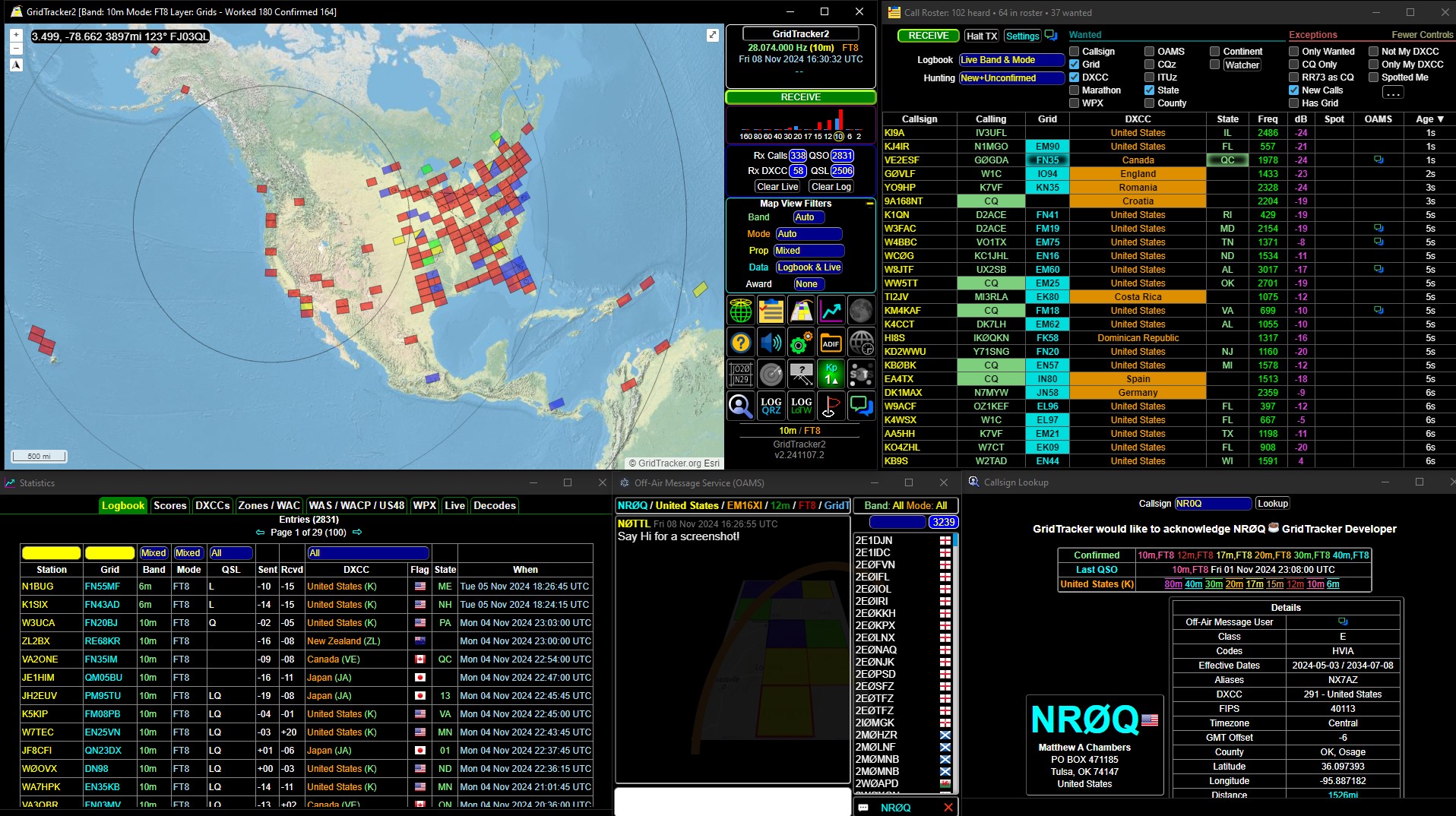
GridTracker was created in 2018 with a simple description: 'GridTracker listens to traffic from WSJT-X and displays it on a map. It can also read ADIF log files.' Since then, the program has evolved into an extremely powerful tool for radio amateurs that has remained true to its original focus, but today offers significantly more than just working with the FT8 mode.
In the article you will read
What is GridTracker?
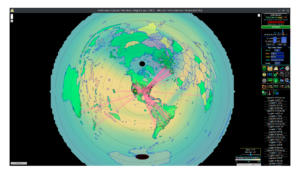
GridTracker is a repository of amateur radio information presented in a clear interface - live decoding of traffic, logs, reports from spotting networks, weather, current solar conditions, and more. Its main features include advanced real-time and historical mapping of connections on a colorful, fully customizable interactive map with support for multiple overlay layers (grayline, real-time award tracking, lightning, moon position, and PSK-Reporter reception reports). The program also offers audio and visual alerts, comprehensivesearching for call signs from popular databases, tabular display of live activity (Call Roster) customizable for award hunters or special events, recognition of DXCC, countries and prefixes, 100% offline mode for field days, SOTA, IOTA or mobile operations, off-air messaging between users and real-time spotting network between GridTracker stations. The program is free.
It is important to realize what GridTracker is not – it is not a logging program. Instead, it displays QSO log data from WSJT-X along with any combination of ADIF files stored on your computer, on the network, or on the internet.
Which software does GridTracker work with?
The basis is the connection with WSJT-X (and also with JTDX) via UDP protocol, from which GridTracker reads decoded traffic and QSO information. The program can also connect to multiple logging applications and web systems, allowing you to see the current progress of diploma fulfillment in one place. Supported data sources include locally stored ADIF files, LoTW (logbook of the World), QRZ.com a ClubLog – from all these sources, GridTracker can directly download your log. It also offers special integration with the N3FJP ACLog program. For searching call signs, the program supports four databases: Callook (default, only for US stations), HamQTH.com, QRZ.com a QRZCQ.com. Medzi ďalšie podporované integrácie patrí HamClock a Parks On The Air (POTA), as well as forwarding push notifications directly to your phone.
HW and SW requirements
Hardware requirements are minimal: a regular, newer computer with an x86 processor (32 or 64-bit) or a Mac with an Intel or ARM processor (32 or 64-bit), and a monitor with a resolution of at least 1024×780. A second or third monitor can be a great benefit if you want to monitor SDR, WSJT-X/JTDX and GridTracker.
| Operating system | Supported versions |
|---|---|
| Windows | 10 and 11 |
| macOS | 13 Ventura, 14 Sonoma or 15 Sequoia |
| Linux AMD/Intel | Any 64-bit distribution with a current kernel and graphical environment |
| Linux ARM 32 / Raspberry Pi – Odroid | 32 and 64-bit ARM distribution of Linux |
Developers officially support only operating systems that have not yet reached end-of-life (non-EOL) – if the program works on older systems, it can be used, but you cannot rely on fixing any issues on such systems.
Main window of GridTracker
The main window of GridTracker consists of the GridTracker map, control panel, and the title bar. The map displays the 'locator status' for as much of the world as you choose – from one country to the entire globe. The Maidenhead squares where you have made connections are highlighted in color according to the legend in the lower left corner of the map window; the legend uses standard Q abbreviations: QSO (locations where you made connections), QSL (confirmed connections), QSX (locations with decoded activity that are not communicating with you), CQ (stations calling CQ), CQDX (stations calling CQ DX), QRZ (stations calling you), QTH (your home locator) and WSPR (locations captured while receiving WSPR). volajúce CQ), CQDX (stanice volajúce CQ DX), QRZ (stanice volajúce práve vás), QTH (váš domáci lokátor) a WSPR (lokátory zachytené pri príjme WSPR).
If you hover the mouse over the highlighted locator, a temporary window will display information about the stations in that locator. Right-clicking will open a fixed window where you can explore the locator details with the mouse and keyboard. The color coding of locators can be changed in the Settings > Grids menu.
Video: GridTracker in practice
Control panel of GridTracker
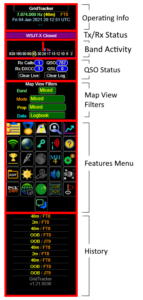
The control panel is divided into several sections. The operational information section displays the current frequency, band, mode, date, and time (clicking this line toggles between UTC and local time), as well as the callsign and location of the station to which you last sent or from which you received a message, including its locator, signal level in dB, country, distance, and azimuth. The Tx/Rx status button shows the status of WSJT-X operation (transmitting, receiving, decoding, waiting for a message, WSJT-X closed, or ignoring).
Graf aktivity pásiem čerpá dáta z PSK Reporter podľa vášho QTH lokátora a zobrazuje relatívnu aktivitu na jednotlivých pásmach. Sekcia stavu QSO zobrazuje počet prijatých volacích značiek (RX Calls), celkový počet spojení (QSO), počet prijatých DXCC (Rx DXCC) a počet potvrdených spojení (QSL) – dôležité je rozlišovať medzi „potvrdením“ v zmysle WSJT-X (kliknutie na ADD alebo Log QSO) a skutočným potvrdením napríklad cez LoTW, kam GridTracker dáta nenačíta automaticky, pokiaľ to explicitne nepovolíte v Settings > Logging.
Filtre zobrazenia mapy (Map View Filters) určujú, aké dáta sa na mape zobrazujú podľa pásma, módu, spôsobu šírenia a typu dát (Logbook, Live, alebo Logbook & Live). Menu funkcií (Features Menu) obsahuje tlačidlá pre Call Roster, režim „push-pin“, vyhľadávanie volacích značiek, štatistiky, online/offline režim, grayline, prekryvy diplomov (CQ zóny, ITU zóny, WAC, WAS, DXCC, americké okresy), sledovanie polohy Mesiaca, prepínanie veľkosti Maidenhead gridu (MH4/MH6), časové pásma, radar NEXRAD (len USA) a zobrazenie ostatných používateľov GridTracker.
Settings of GridTracker
Nastavenia sú rozdelené do dvanástich záložiek. Záložka General obsahuje základné nastavenia UDP komunikácie (predvolený port pre príjem je 2237, pre odosielanie 2238), centrálny grid mapy, jednotky vzdialenosti a možnosť exportu/importu nastavení. Záložka Lookups riadi voľbu databázy pre vyhľadávanie značiek a súvisiace databázy (US ULS, LoTW, eQSL, ClubLog OQRS). Záložka Audio obsahuje nastavenia hlasových upozornení (text-to-speech) a zvukového zariadenia – dôležité je nevyberať tú istú zvukovú kartu, ktorú používa WSJT-X pre komunikáciu s rádiom.
Záložka Map ponúka výber z vyše 30 podkladových máp, animáciu aktívnych trás, priehľadnosť, farby QSX and QRZ trás, tmavosť greyline, jas mapy a automatické prepínanie na nočnú mapu. Záložka Grids nastavuje nepriehľadnosť lokátorov, rozdelené zobrazenie QSL lokátorov, automatické zobrazenie informácií pri prejdení myšou a rýchlosť vyblednutia live lokátorov. Záložka Logging umožňuje automaticky odosielať nové QSO dáta do lokálnych aj webových denníkov. Záložka Alerts obsahuje nastavenie tried zvukových upozornení podľa referencie (aktuálne pásmo/mód, akékoľvek pásmo/mód a podobne) a kritérií (volacia značka, CQ zóna, ITU zóna a ďalšie), spolu s možnosťou výnimiek (napríklad iba CQ, minimálne dB, používanie LoTW) a vlastných (custom) upozornení pre konkrétne volacie značky alebo DXCC entity.
Ďalšie záložky zahŕňajú Call Roster (nastavenie tabuľky živej aktivity), OAMS (Off-Air Message Service – zdieľanie stavu, chat a spotovanie medzi používateľmi GridTracker), User Logbook (obmedzenie zobrazovaných dát podľa konkrétnej pracovnej značky alebo dátumu), Update (poznámky k aktualizáciám) a About (informácie o verzii programu).
Possible difficulties and how to resolve them
Ak mapa GridTracker nezobrazuje všetky vaše QSO, živé dáta alebo dáta PSK, skontrolujte najprv filtre zobrazenia mapy (Map View Filters), či ste neobmedzili zobrazovanie podľa pásma, módu, šírenia alebo typu dát. Ďalej skontrolujte nastavenia Settings > Logging, či automaticky importujete dáta z požadovaných lokálnych alebo internetových zdrojov, a Settings > Logbook, či nemáte omylom zapnutú voľbu „Working callsign“ alebo „Calendar“ s nesprávne zadanou hodnotou. Môže sa tiež stať, že ste neúmyselne stlačili tlačidlo MH4/MH6, čím sa prepla presnosť zobrazovaného Maidenhead lokátora zo 4 na 6 znakov – vtedy sa zdanlivo „stratené“ lokátory vrátia po opätovnom prepnutí naspäť.
If you do not hear audio alerts, check if you accidentally pressed the Audio Mute button in the functions menu. If you are unable to initiate transmission via the Call Roster function (reply to CQ), check the WSJT-X setup requirements for GridTracker listed in the documentation. If PSK Reporter spots have disappeared and instead you see colored areas, you may have accidentally pressed the 'H' key, which activates the heat map mode – pressing 'H' again will return you to the spot view.
Vždy pri spustení GridTracker automaticky načíta aktuálny súbor wsjtx_log.adi – ak chcete zahrnúť aj iné zdroje dát (LoTW, QRZ.com, ClubLog, lokálne ADIF súbory), musíte to explicitne povoliť v Settings > Logging.
Statistics and alerts in GridTracker
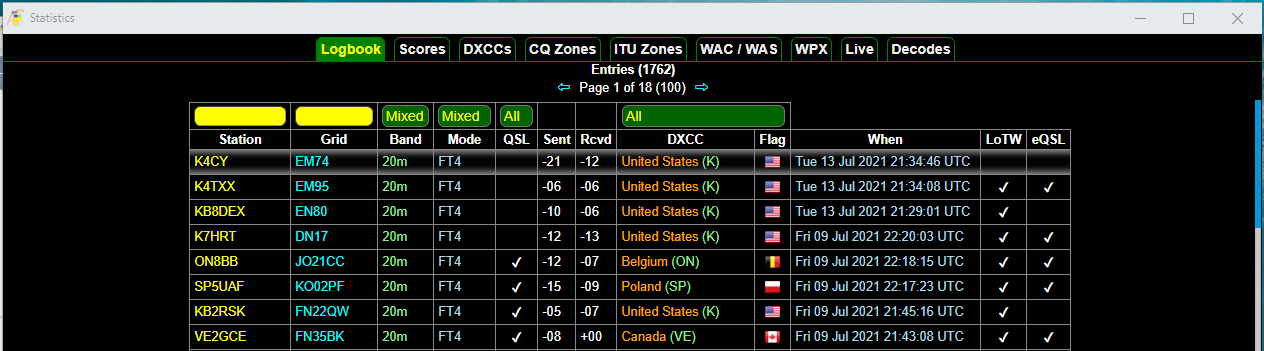
Kliknutím na tlačidlo Statistics v ovládacom paneli sa otvorí okno so všetkými metrikami súvisiacimi s vašimi QSO dátami. Záložka Logbook Data zobrazuje tabuľku so stĺpcami ako stanica, mód, DXCC a ďalšie, ktorú je možné triediť kliknutím na hlavičku stĺpca a filtrovať podľa volacej značky, lokátora, pásma, módu, QSL stavu a DXCC. Filtrovanie podľa lokátora funguje na základe poradia znakov v hľadanom reťazci – napríklad hľadanie „L“ nájde lokátory začínajúce na L, no vynechá lokátory, kde je L druhým písmenom (napríklad DL, EL, FL).
Záložky Scores a Awards zobrazujú váš pokrok smerom k rôznym diplomom (WAC, WAS a ďalšie) pomocou systému tieňovania a zvýrazňovania textu – normálny text znamená potvrdené spojenie, tieňovaný (fuzzy okraj) text znamená nepotvrdené spojenie a zvýraznený text (farebné pozadie) znamená chýbajúce spojenie potrebné na získanie diplomu. Tieto štatistiky vždy odrážajú aktuálne nastavené filtre zobrazenia mapy, takže napríklad zobrazenie diplomu WAC/WAS sa môže líšiť podľa toho, či sledujete iba pásmo 20 m v móde FT4, alebo všetky digitálne módy na pásme 40 m.
Regarding alerts, GridTracker can notify you of a new required locator, country, a friend's callsign, or even your own callsign (useful if you are multitasking during operation and want to know when someone replies to you). By default, alerts are delivered in the form of synthesized speech (text-to-speech), but it is also possible to choose a sound effect from over 200 available options.
Download GridTracker
The current version of GridTracker is 2.260808, available for free from the official website. gridtracker downloads. The program is available for Windows 10/11 (32/64-bit) and older Windows 7/8.1 (32/64-bit), for macOS as a universal DMG or ZIP package, and for Linux in several architectures (AMD/Intel, AArch64/ARM64, ARM32) in Debian, RPM, APK, AppImage, Arch (pacman) and tar.gz formats. It is recommended to read the changelog before installing. The source code is available on GitLab, official support takes place via Discord.
Summary
GridTracker has evolved over seven years since its inception from a simple WSJT-X operation mapper to a complex amateur radio tool that combines live operation tracking, logbook management, award tracking, notifications, and integration with a variety of popular logging programs and web services.It is important to remember that this is not a replacement for logging software – GridTracker displays data from WSJT-X and any ADIF files, but the primary log should be maintained by separate logging software.Thanks to its low hardware requirements and support for Windows,macOS, and Linux (including ARM devices like Raspberry Pi), it is available to almost anyone working with WSJT-X or JTDX, and can be downloaded for free directly from gridtracker.org.