
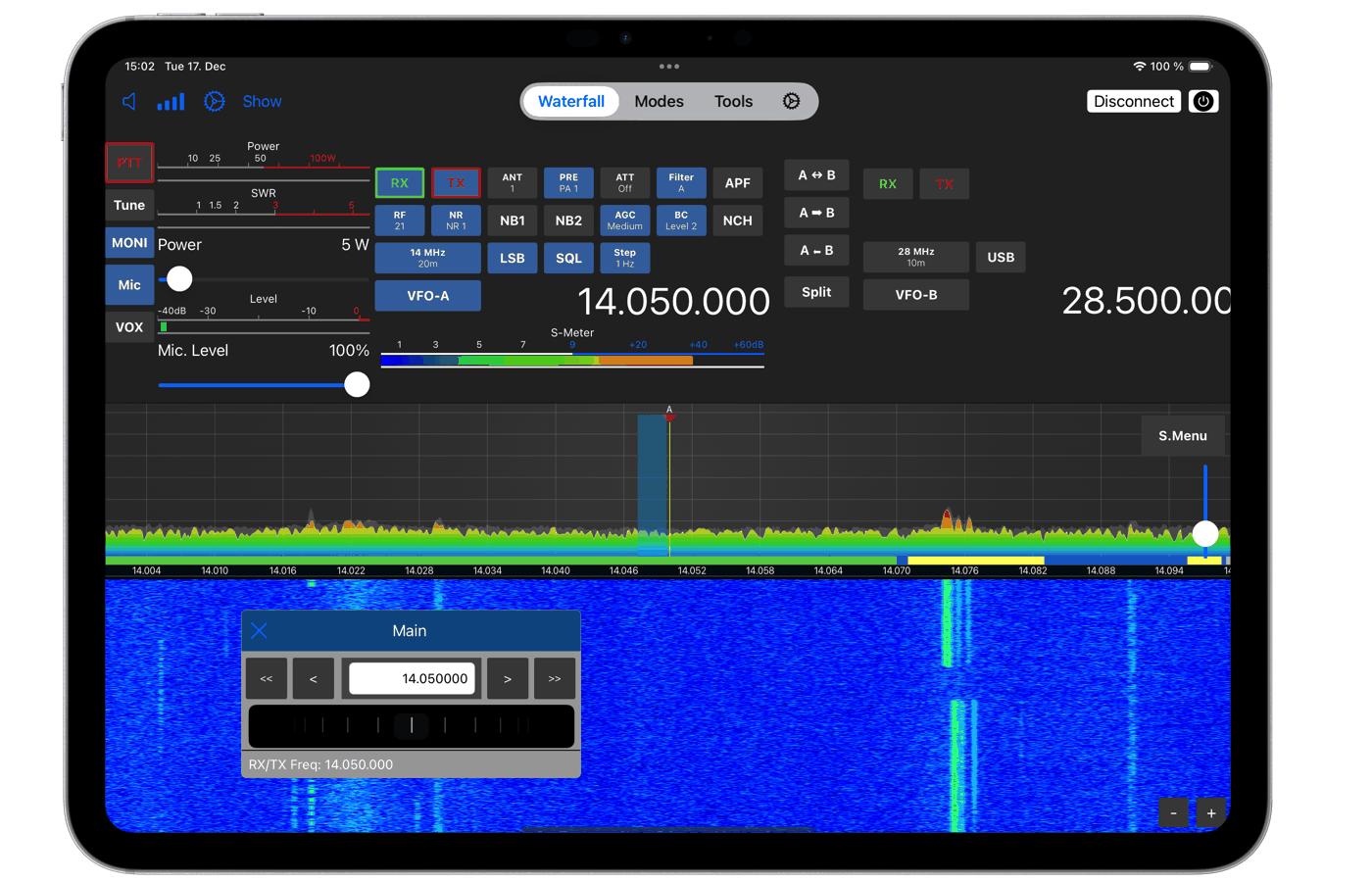
TS-Control for Kenwood is an application by Marcus Roskosch (HAM-Radio-Apps.com) that turns a Mac, iPad, or iPhone into a software client for the Kenwood TS-890 transceiver. The author describes it as the first and only application apart from Windows software from Kenwood itself. For the reader looking for a versatile CAT program pre staršie Kenwoody, je dôležité hneď na začiatku povedať, že tento nástroj to nie je: podporuje výhradne TS-890.
You will read in the article
Supported radios and compatibility limits

The project website and both manuals state that “The TS-990 or other TCVR nie sú podporované“. Autor k TS-990 he adds that he would have to own such a device in order to support it. Not even the TS-590S/SG, TS-480 and therefore you will not find other models in this article. The application works through the radio network interface (KNS), not through serial CAT.
The application can manage multiple transceivers, but only one can be managed at a time. According to the manual, one iOS App Store purchase covers multiple iPads and any number of radios under the same Apple ID.
Platforms and prices
| Platform | A request | Note |
|---|---|---|
| macOS | macOS 14 Sonoma or later (the App Store also lists 14.6), Intel and Apple Silicon | Mac App Store price .99, sold separately from iOS version |
| iPhone, iPad | iOS 17 or later according to the website, iOS 18 according to the manual | one purchase for both iPad and iPhone |
For iOS, the website states version 17, the manual version 18, so before purchasing, check the current data directly in the App Store. The sources do not mention the price of the iOS version. The app is only available through the App Store and the Mac App Store.
Connection: LAN instead of CAT

The application does not need USB or audio cable and does not support USB connection. The radio must be connected to the local LAN with a cable, the Mac or iPad must be on the same network. WiFi is acceptable if it is fast and stable.
The manual describes the radio settings for the iOS version as follows: switch KNS Operation to On (LAN), for remote access On (Internet), turn on Built-in VoIP and Registered User's settings. If KNS cannot be turned on, you must first set the Administrator settings and add the user in the U.LIST list. Audio source will be set to LAN, SEND/PTT and DATA SEND also to LAN and DHCP will be turned on to find out the IP address. In the application, you then add a device with model TS-890, IP address, port 60000 and KNS username and password.
Remote access via the Internet requires a VPN or specific settings in the router, which are described in a separate chapter of the manual. The sources do not talk about the risks, but exposing the radio to the Internet by modifying the router is a security trade-off compared to a VPN.
In addition, the macOS version has a built-in CAT server, through which other software with CAT network control, for example via Rigctl or Hamlib, can control the radio. The iOS version does not have this feature. This is where the practical difference is: if you are using a log program or digital modes outside of TS-Control on your Mac, the CAT server will allow you to maintain a single connection to the radio.
Tuning, modes and spectrum
Tuning can be done in several ways: by dragging the waterfall, double-clicking or tapping on the waterfall (the active VFO will move), using the mouse wheel, directly entering the frequency or via the Tuning Panel. The application displays the spectrum and waterfall from the radio. Only the Center mode is supported and you can set the display level with the slider at the top right, other settings can be accessed by the S.Menu button.
The description in the Mac App Store supplies dual VFO and dual waterfall according to the transceiver's capabilities, DX cluster spots on the waterfall, marker and DXCC alerts, band boundary checking and map markers with directional data. Details about filters, modes and band switching are not described by the sources, so I do not list them.
Audio and remote operation
The sound of the radio is transmitted over the network, without an additional cable. In-app audio settings are independent of macOS system audio. You can select input and output devices, suppress background noise with the Mic Threshold slider, and adjust the radio volume. In the event of sound interruptions, the manual advises to increase the Buffer Size, Mic Delay can help with noise at the beginning of the broadcast. The Network Stats tool is used to diagnose the network: the local RTT to the radio should be below 20 ms, and a packet error rate of up to 0.05% is considered normal. The values are from the iOS manual.
Memories and macros
The memory panel stores the frequencies in the application itself and according to the manual they are separate from the memories stored in the radio. When switching between the app and the radio control panel, this means that the lists are not shared. Macros can be created for CW, RTTY, PSK and voice. In the iOS version, the manual lists up to ten CW macros with variables like {MYCALL} and pro-signs prefixed with ^, for example ^BK, which are triggered from the panel, the keyboard (keys 1 to 0 with Option) or from a MIDI controller.
The Mac App Store also features built-in FT8, FT4, PSK, CW, RTTY, Weather FAX and SSTV digital modes, automatic logging with ADIF import and export, and sending to LoTW and QRZ.com. CW can be broadcast from the keyboard or from a Paddle connected via USB to a Mac, the only mention of USB being for the controller, not the radio.